---
title: "PEI Circuits - Main Screen"
slug: "pei-circuits-main-screen"
tags: ["Circuits", "Search, Filter", "PEI"]
updated: 2026-10-27T23:11:45Z
published: 2026-10-27T23:11:45Z
canonical: "ims-handbook.cenosco.com/pei-circuits-main-screen"
---
> ## Documentation Index
> Fetch the complete documentation index at: https://ims-handbook.cenosco.com/llms.txt
> Use this file to discover all available pages before exploring further.
# PEI Circuits - Main Screen
The Circuits Main screen shows an overview grid, with a list of Circuits.
Listing Circuits (the Overview Grid)
To see the list of registered Circuits:
- Go to the IMS Main Menu.
- Click **Circuits** to go to the Circuits main screen.
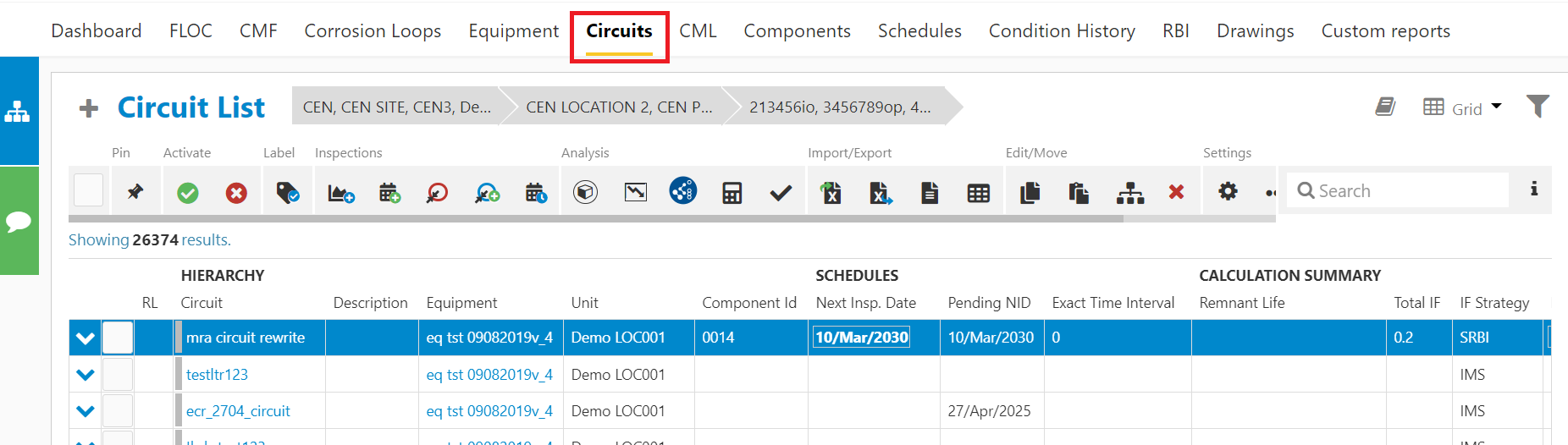
Click on the Circuits Main menu, to list all Circuits.
- Use the scoping bar, the filter, or the search functionality to list the desired Circuits.
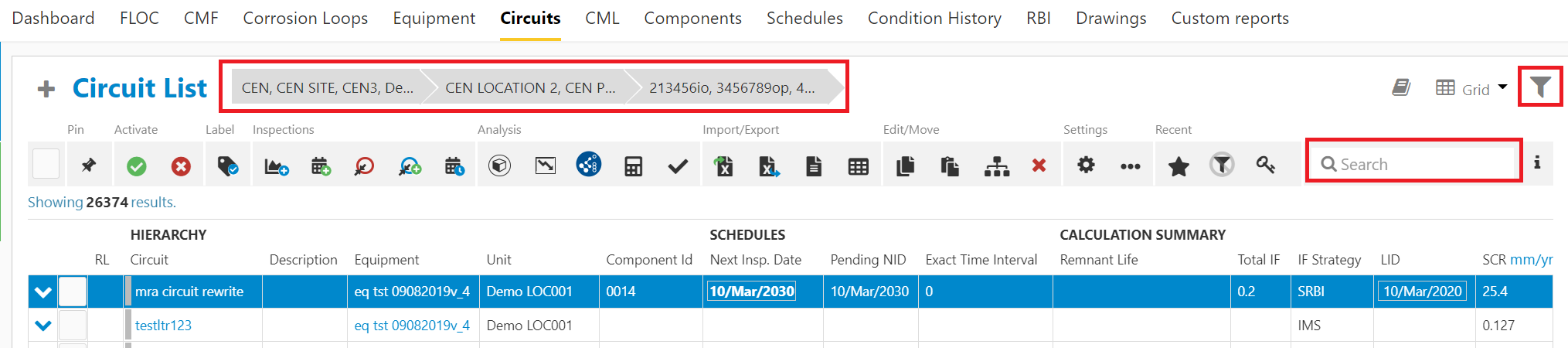
Find Circuits using the scoping bar / filter / search functionality.
- If desired, expand or collapse a Circuit record using respectively the  and  button in the record row.
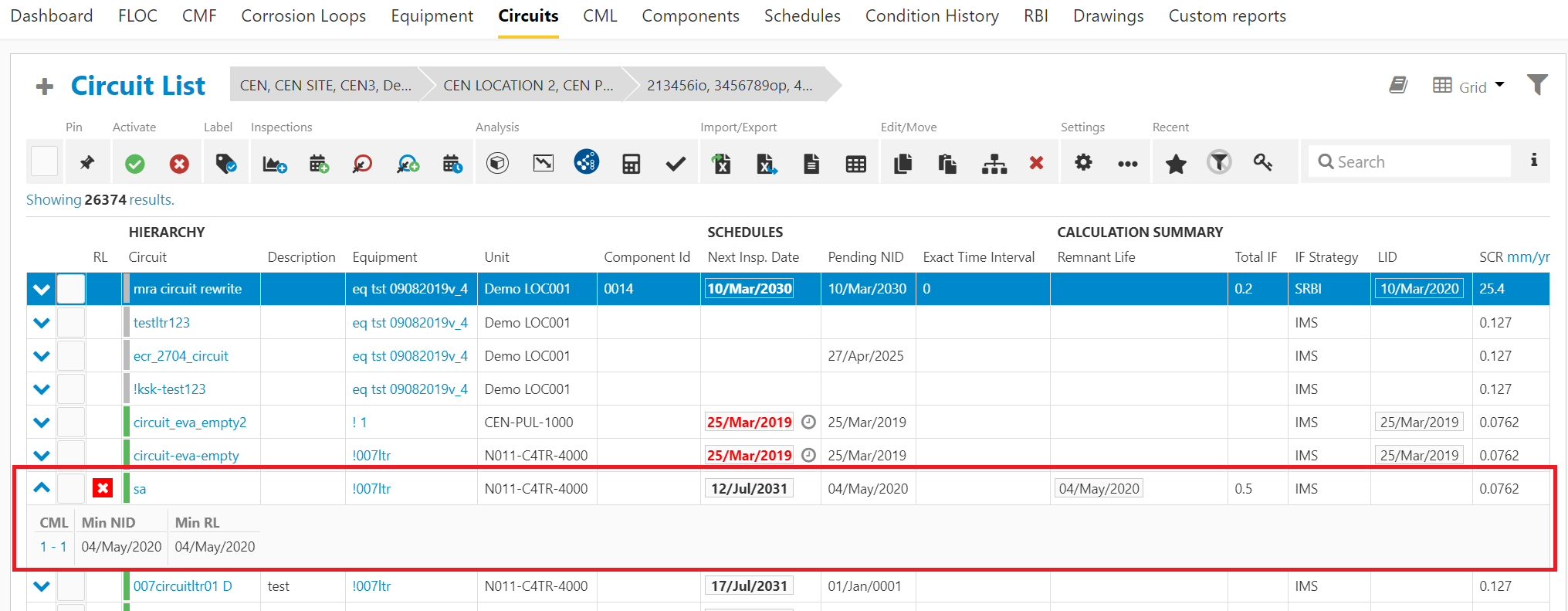
The Circuits Main Screen, showing one record expanded.
- Each record shows several fields, summarizing the Circuits (see the table below). To see more, click on the Settings icon in the toolbar and add additional fields.

Click on the settings icon to modify the grid.
Default Circuit data in the Circuit record:
| Section | Field /Column | Description |
| --- | --- | --- |
| Hierarchy | RL Classification | The Remnant Life icon shows the (worst) remaining life classification for the selected Circuit:  >= 2 SD intervals  >= 1 and < 2 SD intervals  Less than SD interval Less than 1 year remaining  (SD = Shutdown = the Unit’s Turnaround date) |
| Active | The Active flag shows for each Circuit whether it is active or inactive:  Active Circuit  Inactive Circuit |
| Circuit ID | Name of the Circuit, click on the Circuit ID to open the Circuit details. |
| Description | Short Description for the selected Circuit. |
| Equipment ID | Equipment to which the Circuit is assigned to, click on the Equipment ID to open the Equipment details. |
| Unit | Unit to which the Circuit and Equipment is assigned to. |
| Component ID | Component from which the Circuit can inherit Interval Factor (optional). |
| Schedules | Next Insp Date | Next Inspection Date of Circuit’s assigned Corrosion Schedule. |
| Pending NID | When there is an unapproved event, the pending next inspection date is shown. This will be the actual next inspection date once approved. |
| Exact Time Interval | Worst time interval on corrosion Schedule, either time based or calculated. |
| Remnant Life | (Worst) Remnant Life Date from calculated CMLs. |
| Calculation Summary (IDAP) | Total IF | Driving Interval Factor (IF) from either RBI or IMS. |
| IF Strategy | Circuit’s Interval Factor Strategy, either LOWEST, IMS or RBI. |
| LID | Last Inspection Date or last date for which Measurement data is registered. |
| SCR | Suggested Corrosion Rate. |
| Governing Rate | This is the driving (worst) CR, from Short, Long, etc. |
| Required Inspection Method | A required Inspection Method (e.g. UT, RT) can be set for all measurement for the Circuit (optional). This will then show here. |
| Basis | Governing basis from the current Calculation Summary. |
| Pending status | Type of Inspection Event (i.e. Insp Complete, Recalculation) from the current Calculation Summary. |
| Status | Status of the current Calculation Summary. |
| Special Emphasis | [Special Emphasis](/v414/docs/special-emphasis-overview) being registered for the Circuit (only applicable for some Equipment Groups). |
| Labels | Custom labels which can be assigned to each record. |
| Calculation Method | Applied Calculation method, either: - PLR, PSR, CAR, LR (including Circuit averages) - PLR, PSR, LR Default Calc Method is set automatically based on Equipment Group for the Circuit. |
Circuits Menu Toolbar
There are several shortcuts or available features that the Circuit toolbar can be used for. For more information on the Toolbar see [IMS Main Screen (Grid List)](/v414/docs/basic-navigation-other-main-menu-options).
Filtering Circuits
From the Circuits overview page, several filters can be used to drill down the search results for the shown list of Circuits.
To filter a list:
- Click on the *filter* button.
- Check the filters that you want to use.
- Click **Show …**.
For more information on filters see [IMS Main Screen (Grid List)](/v414/docs/basic-navigation-other-main-menu-options).
Moving Circuits
From the Circuit main grid, items can be moved to another Equipment, using  button in the Toolbar. A new screen will appear where the user can select the new Parent (i.e. Equipment) to which the Circuit will be moved.
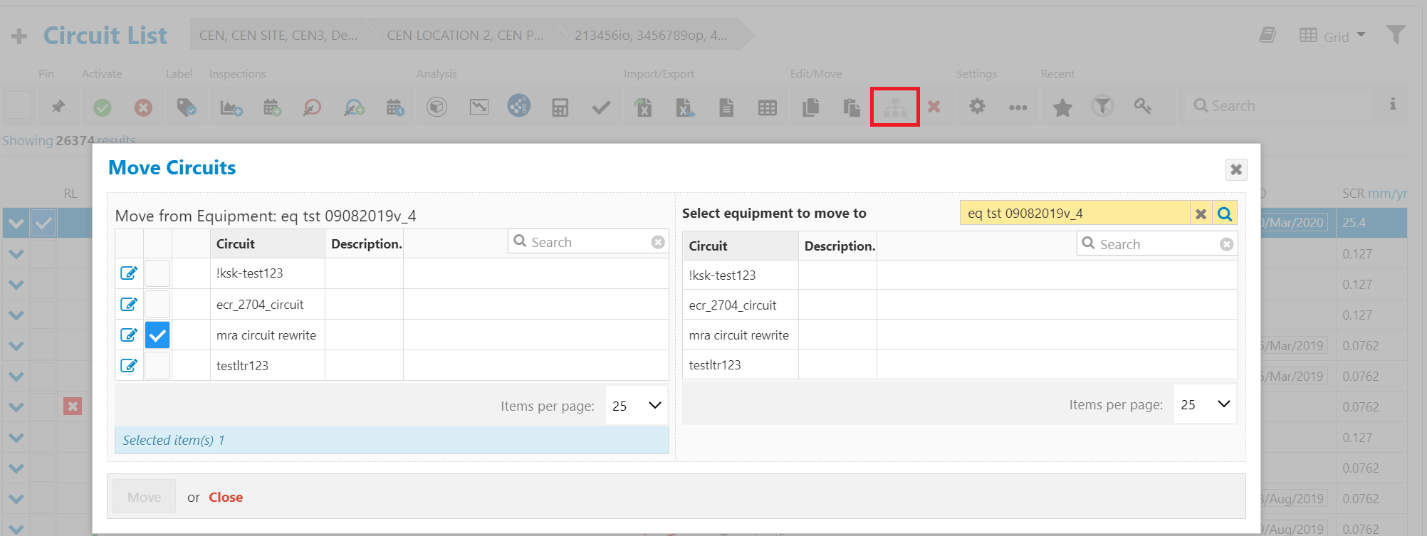
Select a Circuit and click the Move button to move it to another Equipment.
## Calculating Circuits in Bulk
Circuit calculations can be completed and approved in bulk from the Circuits Main Grid. To bulk-calculate Circuits:
- Navigate to the Circuits Main Grid.
- Select the desired Circuits which you wish to Calculate.
- Click the **Calculate Multiple Circuits** icon in the toolbar.
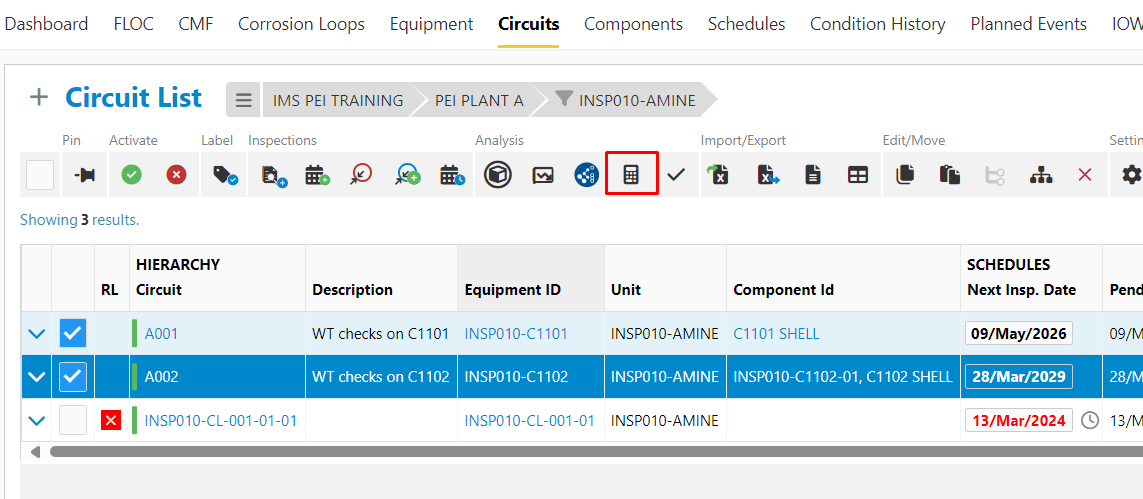
Click **Calculate Multiple Circuits.**
- Confirm the Circuits you wish to calculate in the **Select the circuits you want to recalculate** dialog.
- Click **Calculate all**.
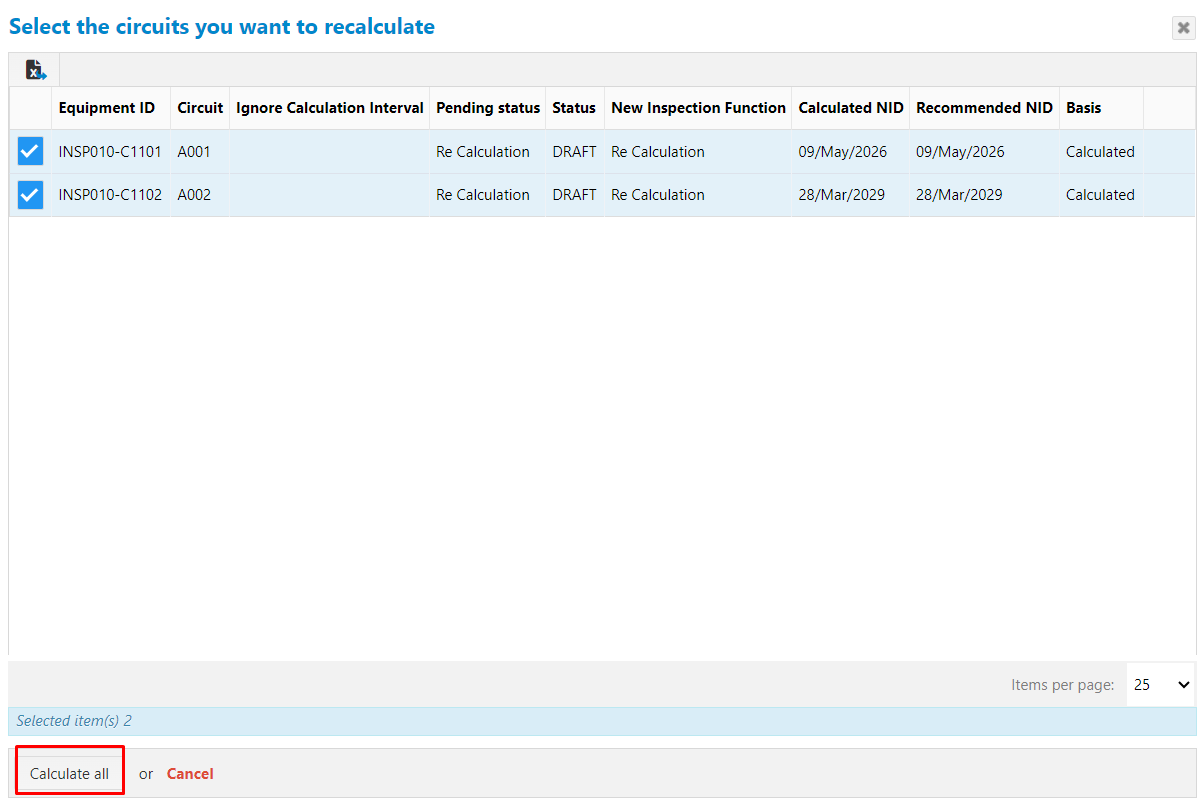
Select Circuits and click **Calculate All**.
## Approving Circuit Calculations in Bulk
To bulk-approve Circuit Calculations:
- Navigate to the Circuits Main Grid.
- Select the Circuits which you wish to Approve.
- Click the **Approve Multiple Events** button.
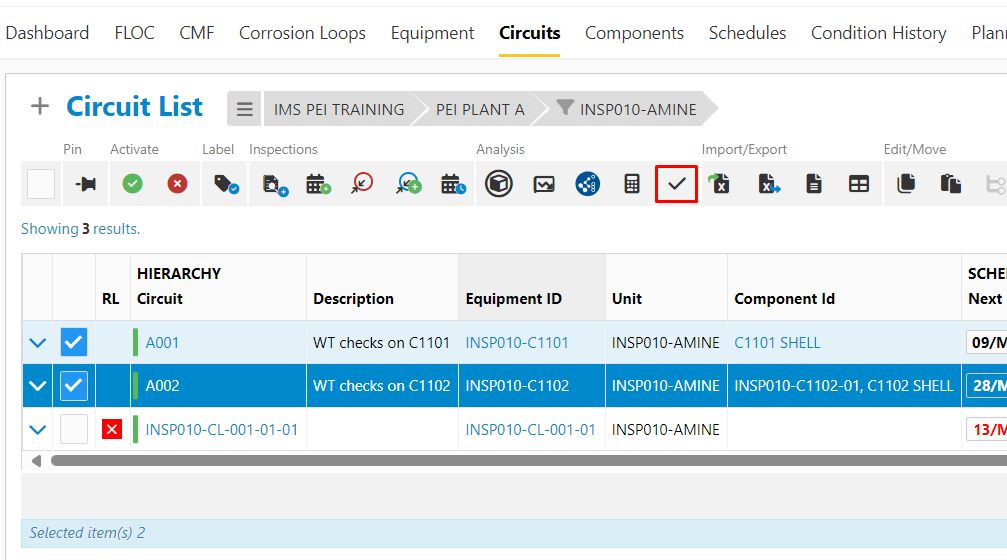
Select Circuits and Click **Approve**.
- Confirm the Circuits which you would like to approve in the **Select the circuits you want to approve/disapprove** dialog.
- Click **Approve** or **Disapprove.**
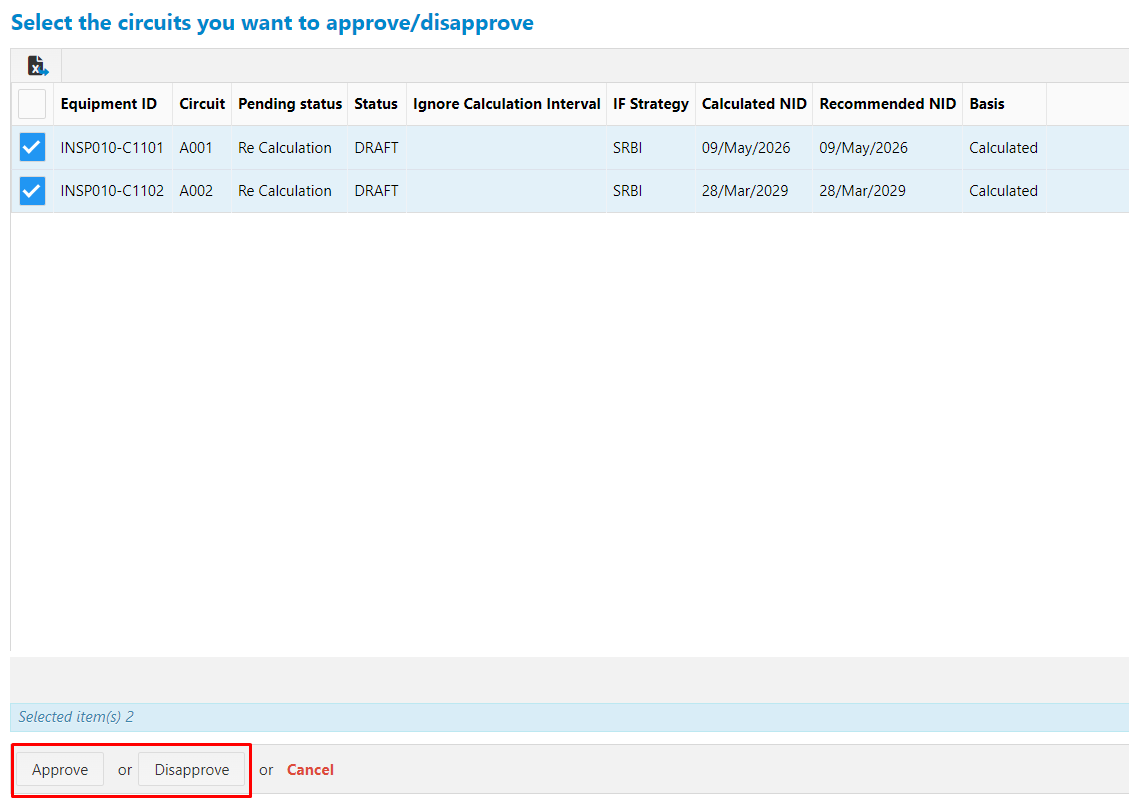
Select Circuits and click **Approve** or **Disapprove**.
> [!NOTE]
> User Note
>
> To learn more about creating and managing Measurement Sets, see: [Managing Measurement Sets](/v414/docs/managing-measurement-sets).