A column filter lets you filter a grid on one column by using a query, which gives you more filtering options than the standard grid filters. When you click the Filter button in a column header, IMS opens a query screen that is already set up for that column. You choose how to compare the column's values, and the grid is filtered accordingly. You can run the filter once or save it as a query to reuse later.
This article explains how to set up a column filter. For background on queries, see Queries - Overview. To build a query from scratch, see Custom Queries Editor.
Create a Column Filter
Hover over the header of the column you want to filter on. The Filter button appears.
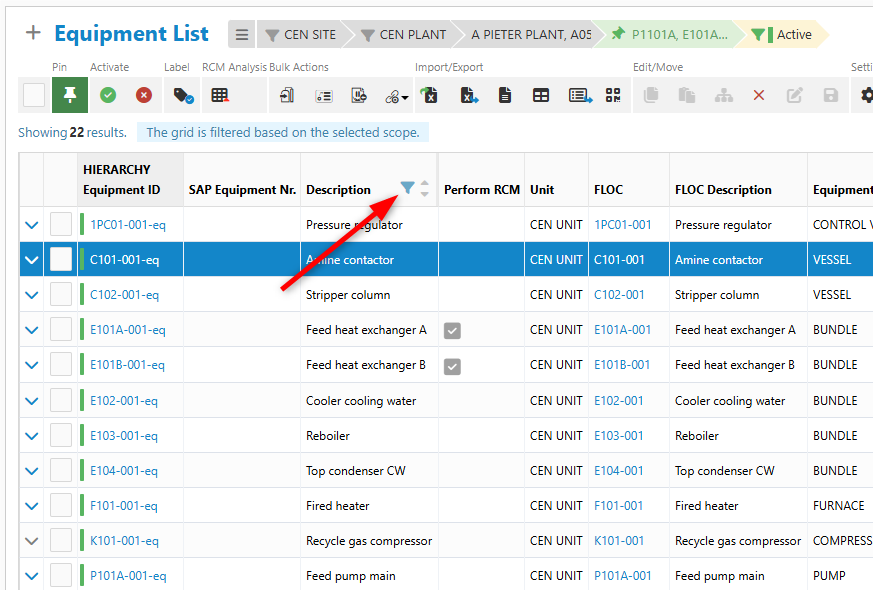
Click the Filter button. The query screen opens, and the column name is filled in automatically in the Criteria section.
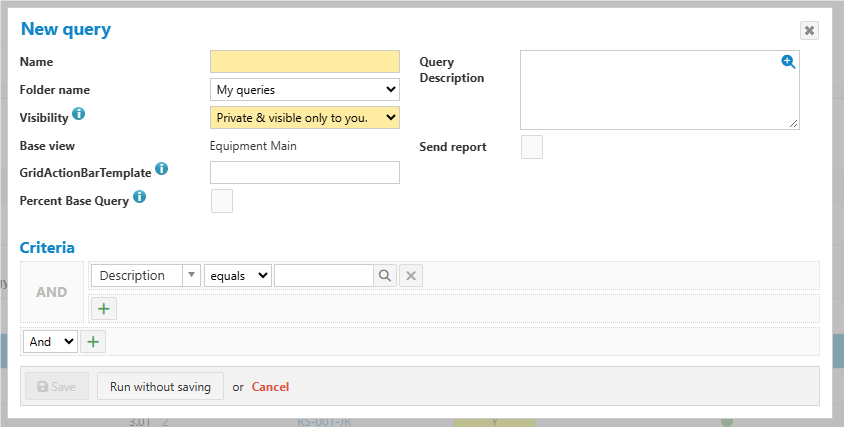
To save the query for reuse, complete the top section of the query screen. The fields highlighted in yellow are required. To only run the filter, skip this step. See Complete the Query Details.
In the Criteria section, select how to compare the column's values, and then enter the value. See Set the Criteria.
Click one of the following buttons:
Save to save the query for reuse. The query is saved in the folder you selected. See Listing All Queries.
Run without saving to filter the grid without saving the query.
Cancel to close the query screen without filtering the grid.
The grid is filtered according to your criteria.
Note
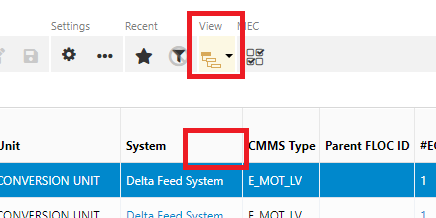
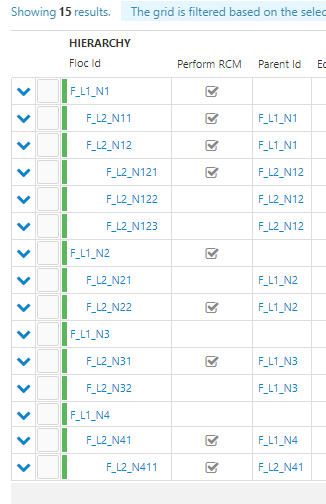
If the FLOC grid layout is set to Hierarchical View instead of Flat List, grid column filters are not available. To use a column filter on the FLOC grid, first set the view to Flat List.
Complete the Query Details
The top section of the query screen defines the query itself. You can leave it empty when you only run the filter. To save the query, complete at least the fields highlighted in yellow.
Field | What to enter |
|---|---|
Name (required) | Enter a name for the query. |
Folder name | Select the folder to store the query in. The default is My queries. To create your own folder, see Custom Queries Editor. |
Visibility (required) | Select Private & visible only to you (the default) or Public & visible to everyone. |
Base view | Shows the view the query is based on, for example "Equipment Main". It is filled in automatically. |
GridActionBarTemplate | Optional. Enter the name of an additional template to show after the standard grid action bar of the query. |
Percent Base Query | Select this check box to make the query usable as the base count for showing percentages on dashboards. |
Query Description | Enter a short description of the data the query returns. |
Send report | Select this check box to send the query results as a report. |
Set the Criteria
The Criteria section defines which rows the filter keeps. It starts with the column you clicked. Select an operator from the second drop-down, for example "equals", "starts with", or "contains", and then enter the value to compare against. The image below shows all available operators.
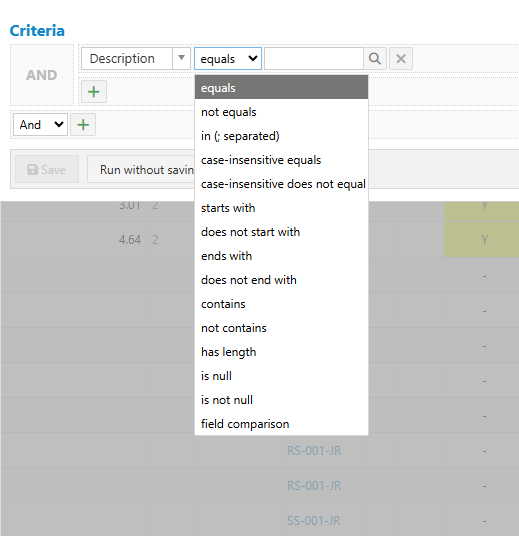
To match more than one value, select in (; separated), and then separate the values with semicolons. To add another criterion, click the Plus button below the first one. For additional information on how to set criteria, see Custom Queries Editor.
FLOC Grids in Hierarchical View
In Hierarchical View, the column headers don't show the Filter button, as in the first image below. The list is sorted by the subordinate FLOCs in the next FLOC level, as in the second image.
Related Articles
For more information, see:
Queries - Overview, for an introduction to queries.
Listing all Queries, to see the queries available to you.
Custom Queries Editor, to build a query from scratch.
Understanding Query Data and Relations, for more theoretical information on queries.
IMS Main Screen (Grid List), to learn more about the standard grid filters.